 (604) 484-9376
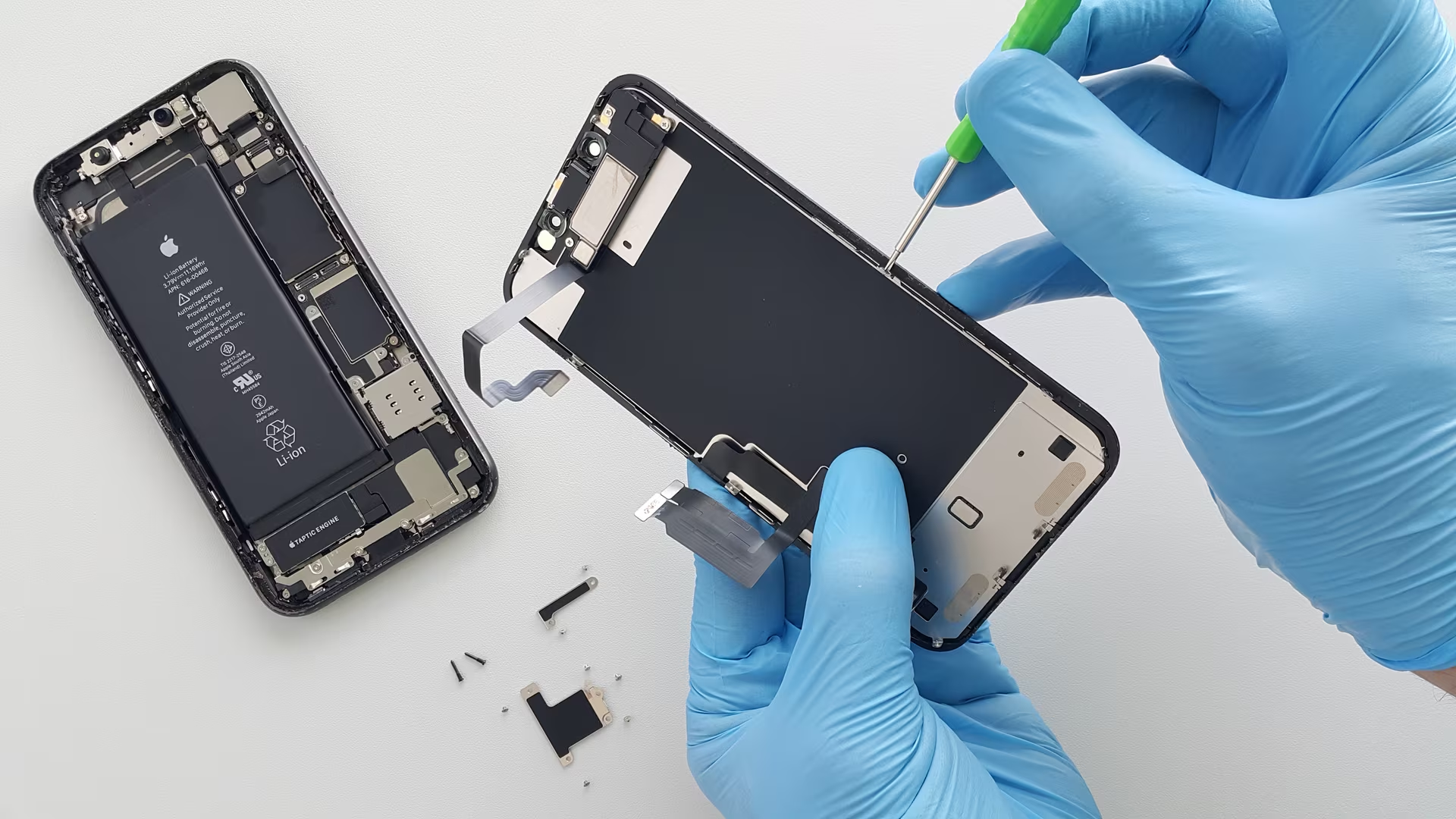
iPhone "Unknown Part" After Repair: What It Means
Published on October 15, 2026
Seeing "Unknown Part" after an iPhone repair? What the message means, which parts it covers, what you can check yourself, and when to get it looked at.
"Unknown Part" means your iPhone couldn't confirm that a replaced part is a genuine Apple part calibrated for your phone. On most iPhones the message doesn't stop the phone or the part from working. It matters when the part isn't behaving properly, when you plan to sell or trade in the phone, when the repair was never finished, and on the iPhone 18 Pro, where the rules are stricter.
Checked against Apple's documentation in October 2026, including iOS 27 and the iPhone 18 Pro models.
Where the message comes from
iPhones keep a record of which parts have been replaced. If an Unknown part is detected, the phone shows a notification the first time you unlock it after the repair, and again five days later.
The full record lives in Settings > General > About > Parts and Service History. That section only appears on iPhones that have been repaired, and it needs iOS 15.2 or later. On iOS 15.1 or earlier, the phone shows an "Important Display Message", "Important Battery Message" or "Important Camera Message" instead. When the phone is online, you can tap a part to see more detail, including the service date.
Each replaced part carries one of these labels:
| Label | What Apple says it means |
|---|---|
| Genuine | The repair used genuine Apple parts and Apple's repair process. |
| Used | A genuine part that was previously installed in another iPhone (iPhone 15 and later, on iOS 18 or later). |
| Finish Repair | A genuine part has been installed, but the repair has not been completed with Repair Assistant. |
| Unknown | The part could not be verified (reasons below). |
| Unverified | Logic board only. The board was previously used in another iPhone, which may limit features such as Apple Pay. |
Which parts your iPhone checks
| Model | Parts listed |
|---|---|
| iPhone 12 and later | Battery, display, logic board, front camera, rear cameras |
| iPhone 11, 11 Pro, 11 Pro Max | Battery, display |
| iPhone XR, XS, XS Max, SE (2nd and 3rd generation) | Battery |
Apple's list doesn't include anything older than these models.
Why a part shows as Unknown
Apple gives four reasons: the part isn't genuine, it isn't working as expected, it wasn't verified and linked to your iPhone after the repair, or it has been modified or can't be verified. For cameras, Apple adds a fifth: the installation is incomplete. In practice, most cases come down to one of these situations.
The part isn't made by Apple. Any screen, battery or camera that isn't a genuine Apple part shows as Unknown, however well it is made. The label tells you where the part came from. It says nothing about whether the part is good.
The part is genuine, but the repair wasn't finished. Genuine parts are calibrated with data Apple stores when the part is made. Since iOS 18, a tool built into the phone, Repair Assistant, downloads that data to complete the repair. If that step was skipped or failed, you'll usually see "Finish Repair" rather than Unknown, and you can often complete it yourself (see below).
The part came out of another iPhone. Apple supports reusing a genuine part from another phone of the same model only on iPhone 15 and later, where it shows as "Used" once finished. On older models there is no way to finish that kind of repair.
The part is locked to someone else's Apple Account. If a part came from a phone with Activation Lock or Lost Mode turned on, its calibration is restricted. Without the right Apple Account details the repair may not be completed, and you can't trade in the phone while the part stays locked.
The part is failing. A genuine part that has stopped working properly can also be flagged.
Does it matter? It depends on the part
Display. Apple lists two kinds of problems with a screen that isn't genuine:
- Touch: missed touches or touches landing in the wrong place, touches registering during a phone call, the screen not turning off during calls, and stray edge or palm touches.
- Picture: True Tone not working correctly, auto-brightness misbehaving because the ambient light sensor works less well, colours that look too yellow or too blue, uneven or lower brightness, and faster battery drain.
Since late 2024, Apple has let you switch True Tone on with a third-party screen, but it says it works only "to the best performance that can be provided".
Battery. Battery Health still shows figures for a battery Apple can't verify, alongside a note such as "Unable to verify this iPhone has a genuine Apple battery". Apple's warning is that those figures might not be accurate. The battery itself still charges and runs the phone.
Rear or front camera. Apple lists focus problems, soft images, Portrait mode missing the subject, and third-party apps that freeze or show a blank preview.
Face ID and Touch ID. Until those parts are calibrated, they won't unlock the phone, approve payments or sign you in to apps.
Selling or trading in. The history stays with the phone, so the next owner can see it, and Apple says an Unknown part might lower the phone's trade-in value.
If the flagged part works properly and you're keeping the phone, the label on its own isn't a fault.
The iPhone 18 Pro is stricter
Apple's September 2026 support pages set out rules that apply only to the iPhone 18 Pro and 18 Pro Max:
- A replaced camera won't work at all until the repair is finished with Repair Assistant or the iPhone is restored. On other models the camera keeps working, if not always at its best.
- A camera that isn't genuine can't capture Apple Reference Image data.
- A screen that isn't genuine can affect the camera and microphone. iPhones show a green or orange dot when an app is using the camera or microphone. With a screen that isn't genuine, those indicators might not appear as expected. Apple says the camera might be disabled and the flash will blink whenever the microphone is in use.
If you have an 18 Pro, ask before any screen or camera repair which part will be fitted, and whether the repair can be finished with Repair Assistant.
What you can check yourself
1. See whether the repair just needs finishing. If Parts and Service History shows "Finish Repair", you need:
- a Wi-Fi connection (hotel-style login pages and networks that use 802.1X authentication don't work)
- more than 20% battery
- the latest version of iOS
Then go to Settings > General > About > Parts and Service History and tap Restart & Finish Repair. If someone else installed the part and it still won't finish, the part may be locked to another account. Contact whoever did the repair.
2. Test the part that was flagged.
- Display: Turn True Tone on and off in Settings > Display & Brightness and check that the screen actually changes. Open a plain white image and look for a yellow or blue tint or patchy brightness. Drag an app icon slowly across every area of the screen to find spots that don't respond. Make a phone call and hold the phone to your ear: the screen should go dark, and your cheek shouldn't press buttons.
- Battery: Open Settings > Battery > Battery Health and note what it shows. Watch how fast the charge drops over a normal day. If the screen lifts, the back bulges or the phone gets hot while charging, stop charging it and have it checked.
- Camera: Tap each zoom button, tap to focus on something close and something far away, try Portrait mode, and open the camera from a third-party app such as a video-calling app.
- Face ID or Touch ID: Set it up again and check that it unlocks the phone and approves a payment.
3. Ask what was fitted. If a shop did the repair, ask whether the part was genuine, OEM or aftermarket, and check that the invoice says the same. The answer explains the label and tells you what the shop's warranty covers.
When to get it diagnosed
Get a technician to look at the phone if:
- the flagged part fails any of the checks above
- "Finish Repair" won't complete after you have checked Wi-Fi, battery and iOS version
- you see a "Face ID Issue Detected" message or another "Issue Detected" message, which Apple reserves for problems that significantly affect how the phone works
- the camera has stopped working on an iPhone 18 Pro after a repair
- the phone shows an Unknown part and you don't know its repair history
At CellFixx the diagnosis is free at any of our five Metro Vancouver stores. Bring the phone and tell us what Parts and Service History shows. You can see the iPhone repairs we do and book a free diagnosis here.
What fixing it might involve
The fix depends on what the diagnosis finds.
- A genuine part that was never finished: run Repair Assistant on a stable connection. Often nothing needs replacing.
- A part that wasn't fitted properly: reseat or refit it, then test again.
- A part that is faulty or not good enough: replace it.
CellFixx stocks both genuine and OEM parts, so you can choose which goes in. We'll tell you which options exist for your model, and the exact price, before any work starts. The part options for each iPhone model are on our iPhone repair page.
FAQs
Can a shop make the "Unknown Part" message go away?
Apple's only supported way to get a "Genuine" label is a genuine Apple part, finished with Repair Assistant. Other methods, such as moving a chip from the old part onto the new one, change what the phone reads, not the part that is fitted. If a shop offers to remove the message, ask exactly what they will do and which part stays in the phone.
Will a factory reset clear the "Unknown Part" message?
No. The status comes from the part itself, and Apple keeps the record with the phone's device information, so erasing the phone doesn't change it. Only one entry per part is shown: the most recent service. The entry changes only if that part is serviced again.
What does "Apple has updated the device information for this iPhone" mean?
After a display or battery repair, Apple may update its records for the phone. Apple says it uses those records for safety analysis and to improve its products. You don't need to do anything.
Can a future iOS update cause problems with a part that isn't genuine?
Apple warns that, for cameras, problems can appear after an iOS update that includes camera updates or new camera features. A newer iOS can also prompt you to finish an earlier repair with Repair Assistant. Apple doesn't say that updates switch off parts that aren't genuine.
I'm buying a used iPhone that lists an Unknown part. What should I check before paying?
Open Parts and Service History and note which part is flagged and when it was serviced. Test that part using the checks above, and ask the seller who did the repair and what was fitted. If any part shows "Finish Repair", ask the seller to complete it in front of you. A part that won't finish may be locked to someone else's account.
My iPhone says Unknown Part, but I've never had it repaired. How?
If you bought it second-hand or refurbished, a previous owner or refurbisher most likely replaced the part. If you bought it new and it has never been opened, a part that isn't working as expected can also be flagged. If it's still under Apple's warranty or an AppleCare plan, contact Apple first.
Does an Unknown part affect my Apple warranty or AppleCare?
Apple says repairs by independent repair providers aren't covered by Apple's warranty or AppleCare plans, although the provider's own warranty may cover them. A part that stays locked to another Apple Account isn't eligible for Apple warranty or AppleCare service at all.
I'm taking a phone with a flagged part to Apple. What should I do first?
Back it up, and finish any part marked "Finish Repair". On iOS 27 or later, open Find My, select the phone, tap More, then Repair or Trade In, and tap Enable. This keeps Find My on during an eligible repair. On iOS 26 or earlier, Apple asks you to turn off Find My instead, and it may not be able to service the phone if you don't.

Written by Shah K.
Owner & Device Repair Expert at CellFixx
October 15, 2026
Shah K. is the owner of CellFixx, serving Vancouver, Burnaby, Coquitlam, Richmond, and Metro Vancouver. He shares practical repair advice and expert insights on iPhone, Samsung, screen, battery, charging port, water damage, data recovery, and device repair.