 (604) 484-9376
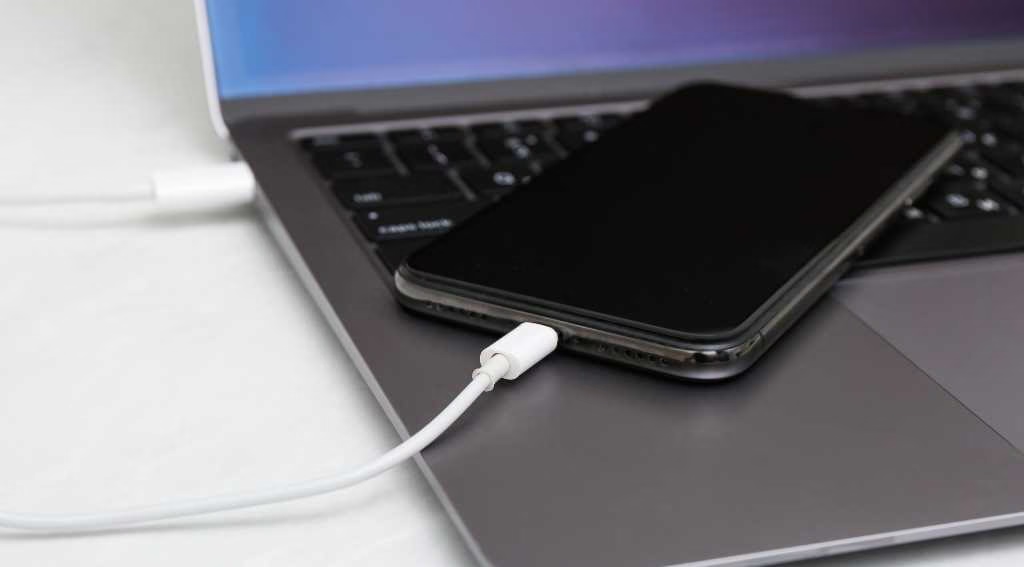
How to Back Up Your iPhone Before a Repair (And What to Actually Disable)
Published on December 17, 2024
Most people hand over their iPhone for repair without backing it up. Usually it's fine — screen replacements and battery swaps don't touch your storage. Bu
Most people hand over their iPhone for repair without backing it up. Usually it's fine — screen replacements and battery swaps don't touch your storage. But "usually" isn't good enough when your photos and messages are at stake.
Here's what to actually do before dropping your phone off, and — just as important — what to turn off so the repair can go smoothly.
Step 1: Back Up First
You have two options: iCloud or your computer. Either works. The one you skip is the problem.
iCloud backup is the easiest. Go to Settings → [your name] → iCloud → iCloud Backup → Back Up Now. Wait until it finishes — don't just start it and walk out the door. A full backup over Wi-Fi takes 5–20 minutes depending on how much is on your phone. Check the "Last Backup" timestamp to confirm it completed.
Computer backup (via Finder on Mac, iTunes on Windows) gives you a local copy and lets you encrypt the backup, which preserves passwords, Health data, and Wi-Fi credentials. Connect your phone, open Finder, select your device, and hit Back Up Now. Encrypted backup is worth enabling — tick the box and set a password you'll remember.
If you're low on iCloud storage and don't have a computer handy, free up space by excluding large apps (iCloud Backup → Choose Data to Back Up) and backing up just your photos and messages.
Step 2: Turn Off Find My iPhone
This is the one that matters most for the repair shop. Find My iPhone is an anti-theft lock — when it's active, certain repairs trigger Activation Lock, which means the device can't be restored without your Apple ID credentials.
Most reputable shops won't accept a device with Find My still enabled. We don't.
Turn it off: Settings → [your name] → Find My → Find My iPhone → toggle off. You'll need your Apple ID password. Once the repair is done, you can turn it back on immediately.
Step 3: Disable Screen Lock Temporarily (Or Share Your Passcode)
Technicians need to test the repair — checking that the screen registers touches correctly, that Face ID enrols and recognises, that the new battery reports health data properly. This requires the device to be unlocked.
You don't need to permanently remove your passcode. Either disable it for the duration (Settings → Face ID & Passcode → Turn Passcode Off) or simply write it down and share it with the shop when you drop off.
If you're uncomfortable sharing your passcode — which is a legitimate concern — ask the shop whether they can perform the repair and have you test the result yourself on pickup. A good shop will accommodate that.
What Actually Happens to Your Data During a Repair
Screen replacements, battery swaps, and most component repairs don't involve your storage at all. The technician is working on the physical hardware — your data stays on the chip inside, untouched.
The scenarios where data could be affected: a software restore as part of diagnosing a software fault, a logic board replacement where your existing storage chip can't be transferred, or liquid damage severe enough to require board-level cleaning that risks the storage IC.
For standard repairs, the risk to your data is essentially zero. The backup isn't for the repair — it's your insurance against the unexpected. A drop during the repair, an unforeseen fault discovered mid-job, a power surge. These are rare. But rare isn't never.
Choosing a Shop You Can Trust
Data privacy during repairs is a real concern, and it's worth asking directly: does the shop have a privacy policy for in-store repairs? Do technicians work in an open area where devices aren't left unattended?
At Cellfixx, repairs are done on the bench in-store, not sent off to a depot. We don't access customer data, and Find My iPhone being disabled is a hard requirement — not because we need to, but because it's the right protocol for both sides.
Once you've backed up, turned off Find My, and noted your passcode, you're ready. The repair itself takes care of the rest.
How to Secure Your Data Before Getting Your iPhone Repaired

Written by Shah K.
Owner & Device Repair Expert at CellFixx
December 17, 2024
Shah K. is the owner of CellFixx, serving Vancouver, Burnaby, Coquitlam, Richmond, and Metro Vancouver. He shares practical repair advice and expert insights on iPhone, Samsung, screen, battery, charging port, water damage, data recovery, and device repair.